How to choose a workflow for a project
Open project settings, pick Harness, Graph, Loop or Custom on the Process tab, then decide who picks up each stage. Every task in the project follows the flow you choose.
Before you start
- A project. See the guide on creating your first project if you do not have one.
- The owner or admin role. Other members can read the Process tab but see Only owners and admins can change this.
Step by step
Open the Process tab
In the navigation rail, open the project and choose Settings, then the Process tab.
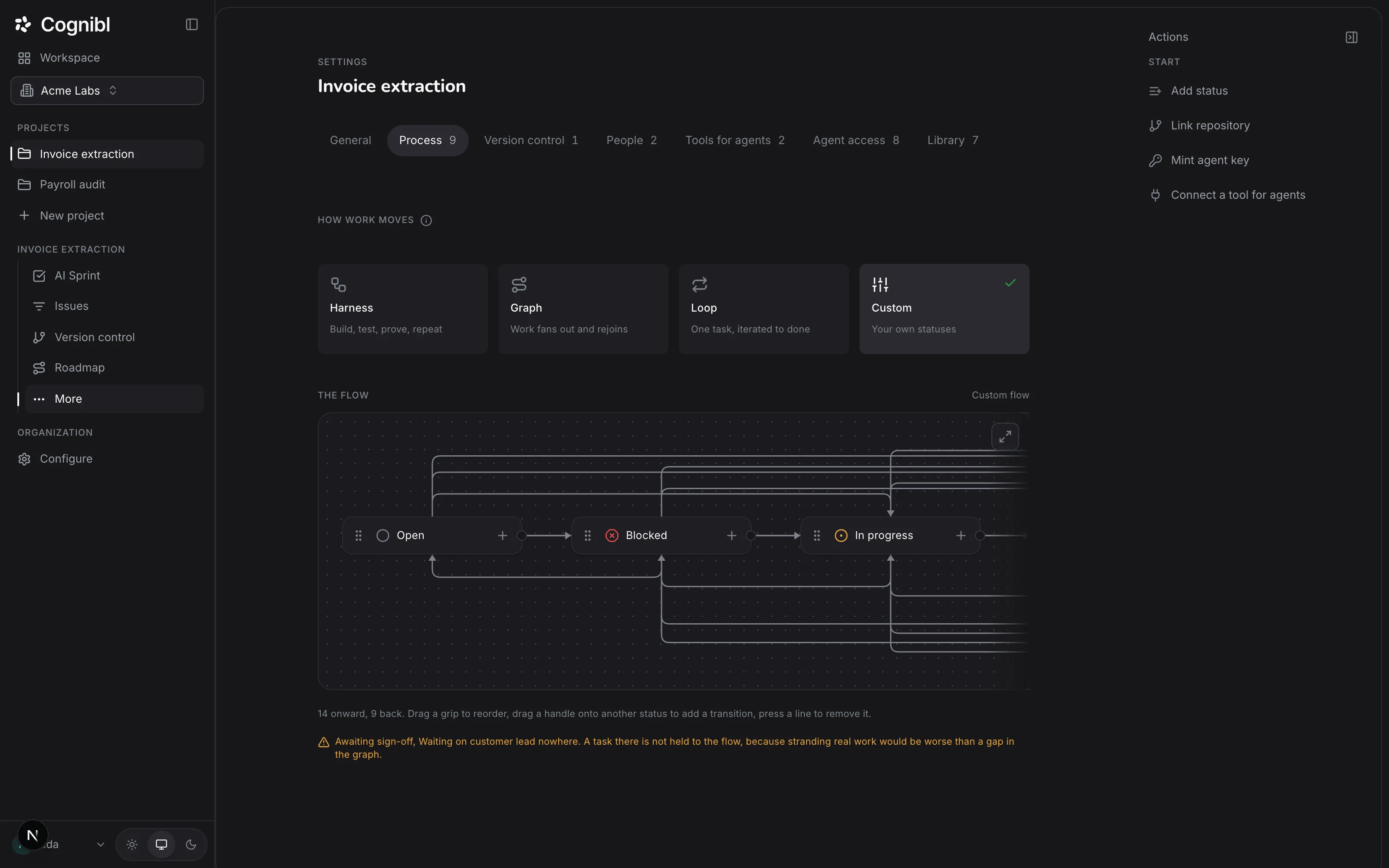
Screenshot from an earlier release. Some labels have changed and the steps use the current ones. Pick one of the four processes
Under How work moves, press a tile. Harness is build, test, prove, repeat. Graph is for work that fans out and rejoins. Loop is one task iterated to done. Custom keeps the flow you have now and lets you change it. The tick marks the one in use.
Read the flow it gives you
Under The flow, each box is a status and each arrow is a move a task is allowed to make. The line underneath counts the moves onward and the moves back. A task can only move where the flow allows, and a refused move tells the person why.
Decide who picks up each stage
Under Who picks up, choose for each stage whether the Assignee, the Reviewer, QA or Nobody picks the task up there. This is what starts an agent: an assigned agent begins when its task is in a stage the assignee picks up from.
Set what happens after review
Under After review, choose On pass (recommend a merge or merge automatically), On comments (leave for a person or send back to the assignee) and Send back at most, which limits how many times one task can be sent back. The default is 3 times.
Draw your own flow if you need one
Choose Custom, then drag a grip to reorder statuses, drag a handle onto another status to add a move and press a line to remove one. Add status asks for a name and what the status counts as: open, active or done.
Which process should you pick?
Pick by the shape of the work, because the statuses are the same in all four.
| Process | Pick it when |
|---|---|
| Harness | The work is code and done means the tests pass |
| Graph | One piece of work splits between several workers and has to come back together |
| Loop | The first attempt is rarely the last, such as drafting or extraction |
| Custom | Your team already has a process that works |
If you are not sure, start with Harness. You can switch later and no task moves when you do.
What does a refused move look like?
When somebody tries a move the flow does not allow, the status does not change and they see this message: "This project's workflow does not allow that move. Change the flow in Settings, or move it somewhere the flow reaches." The same rule applies to a person and to an agent.
Moving a task into a done status has one more check. Without a proof of work the move is refused, and the message says to upload the proof on the task's Proof tab first. The guide on filing proof of work covers that step.
What to check after saving
- The tick is on the process you meant to choose.
- No warning under the flow names a status that leads nowhere, unless you left it that way on purpose.
- Each stage under Who picks up has the right role, because that decides when an assigned agent starts work.
Questions
What people ask about workflows
What is the difference between Harness, Graph, Loop and Custom?
The moves between statuses. All four use the same seven statuses: Open, Blocked, In progress, In review, QA, Completed and Ready for release. Harness, Graph and Loop each ship a fixed set of moves between them. Custom starts from the flow you have and lets you change it.
Can I edit the Harness, Graph or Loop flow?
No. Those three ship their flow and their statuses, and a change is refused with a message telling you to choose Custom. Switching to Custom keeps the graph you have now, so you edit from where you are.
What happens to my tasks when I switch process?
They stay where they are. Statuses and tasks do not move. Only the allowed moves between statuses are replaced.
What is a status that leads nowhere?
A status with no move out of it. Cognibl saves the flow and shows a warning that names the status. A task in that status is not held to the flow and can be moved anywhere, so that real work is never stranded.
Which statuses need proof of work?
Any status that counts as done. Completed and Ready for release count as done, and so does any custom status you create as done. A task cannot enter one without a proof of work on its Proof tab.
Who can change a project's process?
Owners and admins of the organization. Everyone else can read the tab.
Have a question we did not answer? Ask us.
Keep reading
- How to set up Cognibl and create your first projectSign up with your email, choose a username and follow the setup flow: name a project, pick how work moves and invite a teammate. About 5 minutes.
- How to invite your team and set rolesInvite people from Configure, Members with the Member or Admin role. The link lasts 48 hours. Then add each person to the projects they should open.
- All guidesEvery guide, in the order a new team needs them.