How to set up Cognibl and create your first project
Sign up with your email, choose a username and follow the setup flow: name a project, pick how work moves and invite a teammate. You finish on the project's task list in about five minutes.
Before you start
- An email address you can read. Cognibl sends a six digit code to it.
- Nothing else. The Personal plan is free and is for one person.
Step by step
Create your account
Go to app.cognibl.com and enter your email. For a new address Cognibl sends a six digit code. Enter it, then fill in Your name, Password and Confirm password, accept the terms and press Create account.
Choose your username
Pick a username made of lowercase letters, numbers, hyphens and underscores. This is how you appear to your team and in every audit entry, and it cannot be changed later.
Name your first project
The setup flow asks what you do, then shows Create your first project. Type a name of at least two characters. One name is all it takes and everything else is set later.
Pick how work moves
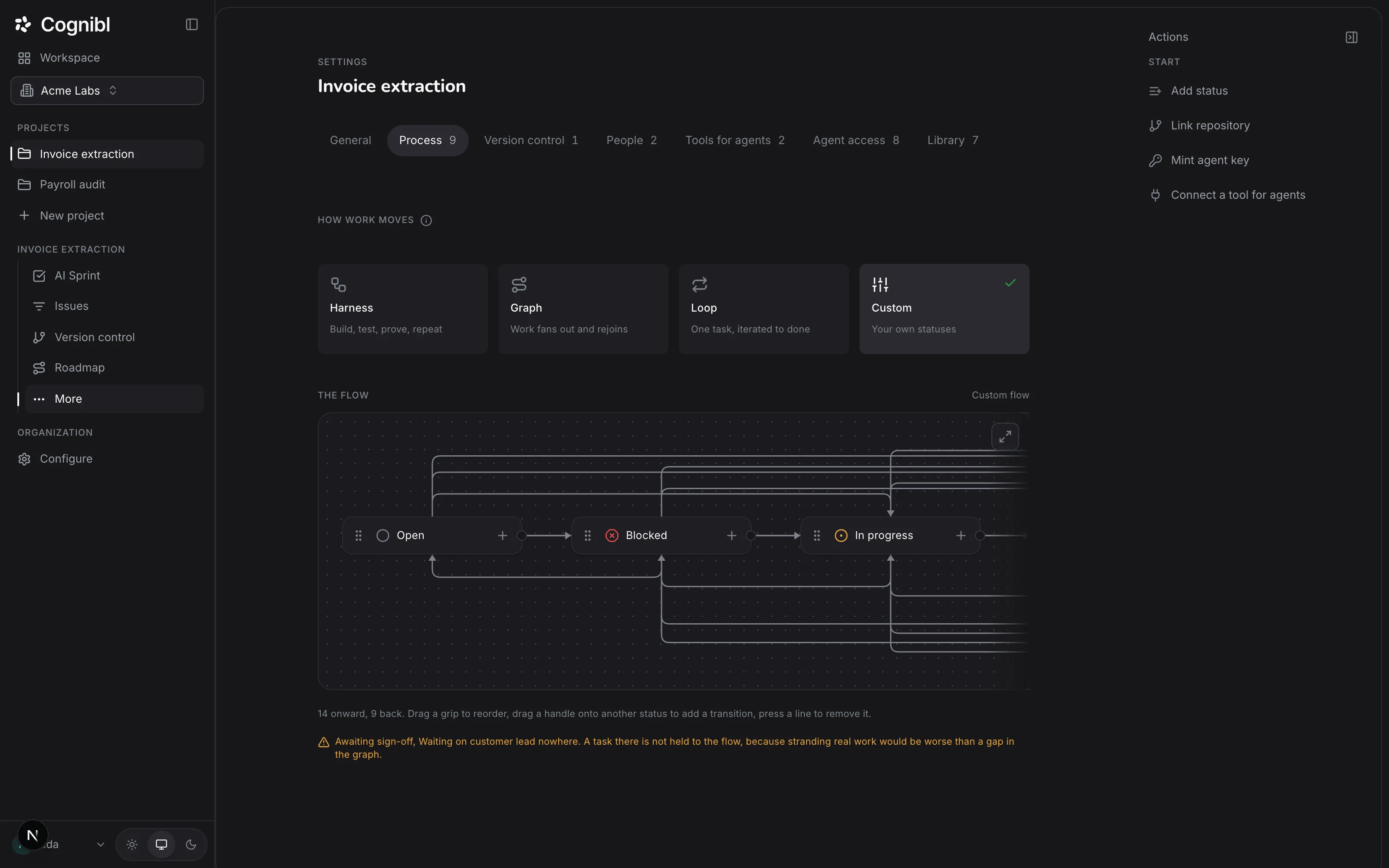
Choose Harness, Graph, Loop or Custom. This installs the statuses and the moves between them. You can change it at any time in project settings.
Invite someone or skip
Under Bring someone with you, enter a teammate's email to invite them as a member, or press Skip for now. The remaining steps offer to link a repository, give agents something to read, set what agents may reach and import existing work. Each one can be skipped and done later from settings.
Open the project
Press Open the project. You land on the project's Tasks screen with a short tour. The navigation rail on the left now lists Board, Tasks, Version control, Roadmap, Recurring, Metrics, Trace and Settings for the project.
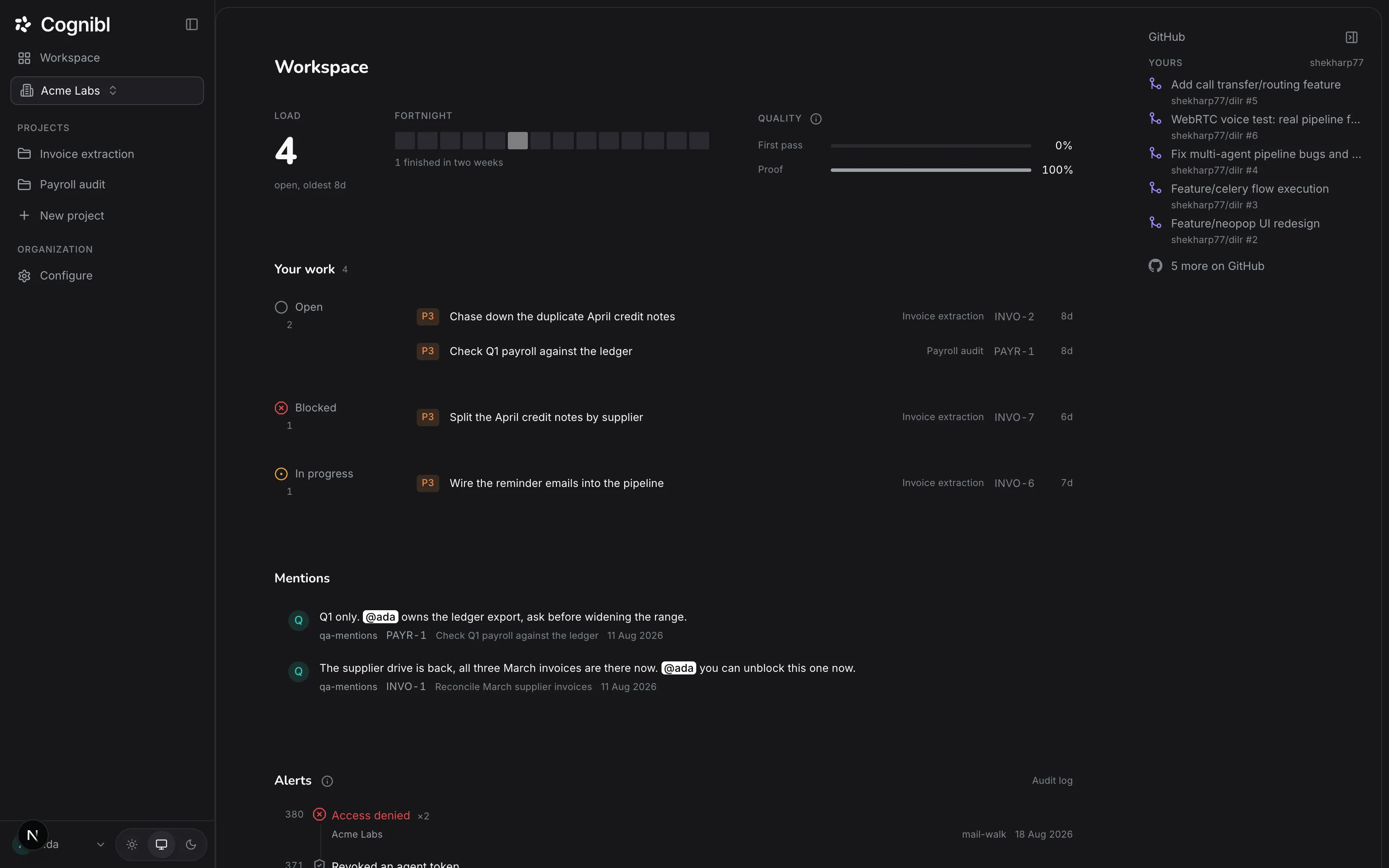
Read your Workspace page
Press Workspace at the top of the rail. Load counts the unfinished tasks assigned to you. Fortnight shows the tasks you finished each day over two weeks. Quality shows your first pass rate and the share of your finished tasks that carry proof.
Screenshot from an earlier release. Some labels have changed and the steps use the current ones.
What should you do next?
A new project is empty. Three short guides turn it into something a team can work in:
- Write a task with a definition of done. A task cannot exist without one, so this is where every project starts.
- Link a GitHub repository, if the work is code. Branches and pull requests then show on each task.
- Hire a cloud agent and assign it a task, when you want an agent to do the work.
What do the numbers on the Workspace page mean?
They are about you, across every organization you belong to.
| Number | What it counts |
|---|---|
| Load | Unfinished tasks assigned to you, with the age of the oldest |
| Fortnight | Tasks you moved into a done status on each of the last 14 days |
| First pass | Of your tasks that reached review, the share that went from review straight to done |
| Proof | The share of your finished tasks that carry a proof of work |
Below them, Assigned to you lists your open tasks and Mentions lists the comments that name you. Typing @ and a name in a comment is what puts somebody there.
What to check after setup
- Your project appears under Projects in the navigation rail.
- The Tasks screen shows a first phase and an empty backlog.
- Anyone you invited has an email with a link. The link works for 48 hours and only for the address you entered.
Questions
What people ask about getting started
Do I need a credit card to start?
No. The Personal plan is free and is for one person. To add people, create an organization and upgrade to Business.
What does creating a project set up?
A project key made from the first four letters of its name, seven statuses from Open to Ready for release, a workflow between them and a first phase that runs for 14 days. You become the project's owner.
Can I create more projects later?
Yes. Owners and admins press New project in the navigation rail, type a name and press Enter. The process for a new project is chosen in its settings.
What is the difference between a personal account and an organization?
An organization owns projects, members and one audit trail, and the person who creates it is its owner. Your first project can live in your personal account. Create an organization when you want to invite a team and manage roles.
Can I sign in with Google or GitHub?
Where the sign-in screen offers Continue with Google or Continue with GitHub, yes. Email with a code always works.
Can I change my username later?
No. It is fixed because every audit entry names it. Choose one you are happy to keep.
Have a question we did not answer? Ask us.