Guides
Learn Cognibl one screen at a time
18 guides with screenshots of the real product. Each one covers a single job, lists what you need first and takes a few minutes to follow.
Part 1 of 5
Get started
Create the workspace, shape the first project and write the first task. Start here if you signed up today.
- Guide 01
How to set up Cognibl and create your first project
Sign up with your email, choose a username and follow the setup flow: name a project, pick how work moves and invite a teammate. About 5 minutes.
7 steps5 min - Guide 02
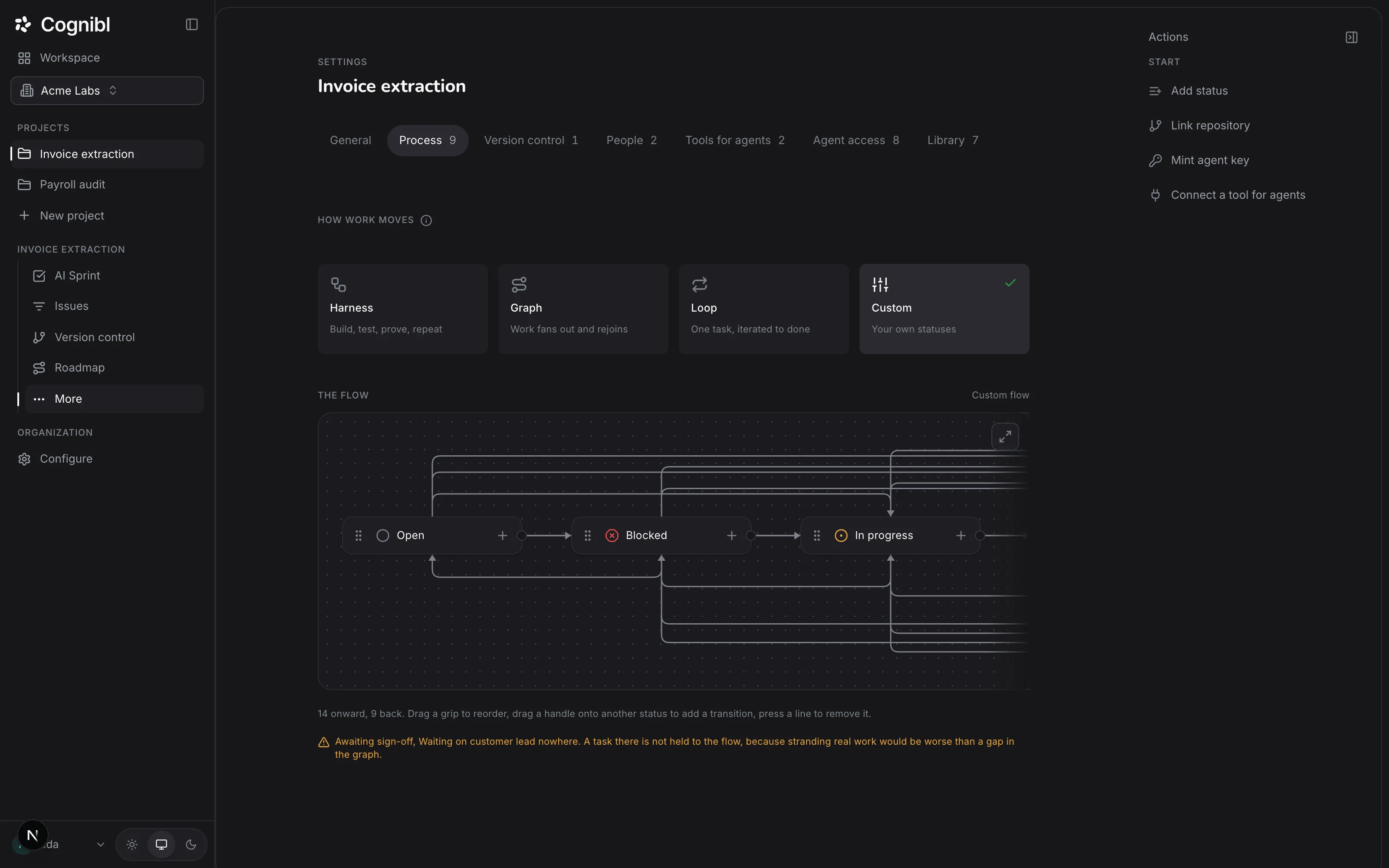
How to choose a workflow for a project
Pick Harness, Graph, Loop or Custom on the Process tab of a project, then set who picks up each stage. Every task in the project follows that flow.
6 steps6 min - Guide 03
How to invite your team and set roles
Invite people from Configure, Members with the Member or Admin role. The link lasts 48 hours. Then add each person to the projects they should open.
6 steps4 min - Guide 04
How to import your work from Jira or Linear
Connect Jira or Linear with an API key, pick the projects and start the import. It is a one-way copy, and closed issues arrive open in Cognibl.
6 steps10 min
Part 2 of 5
Tasks and proof of work
How a task says what done means, what proof it has to carry and what the check does when the proof is missing.
- Guide 05
How to create a task with a definition of done
Press New task, pick a type, name it and write the test it has to pass. In Cognibl a task cannot be created without a definition of done.
7 steps4 min - Guide 06
How to file proof of work and move a task to done
Upload a proof of work CSV on the Proof of work tab of a task. It is validated on upload, and once a version exists the task can enter a done status.
6 steps6 min - Guide 07
How to plan a phase and run the board
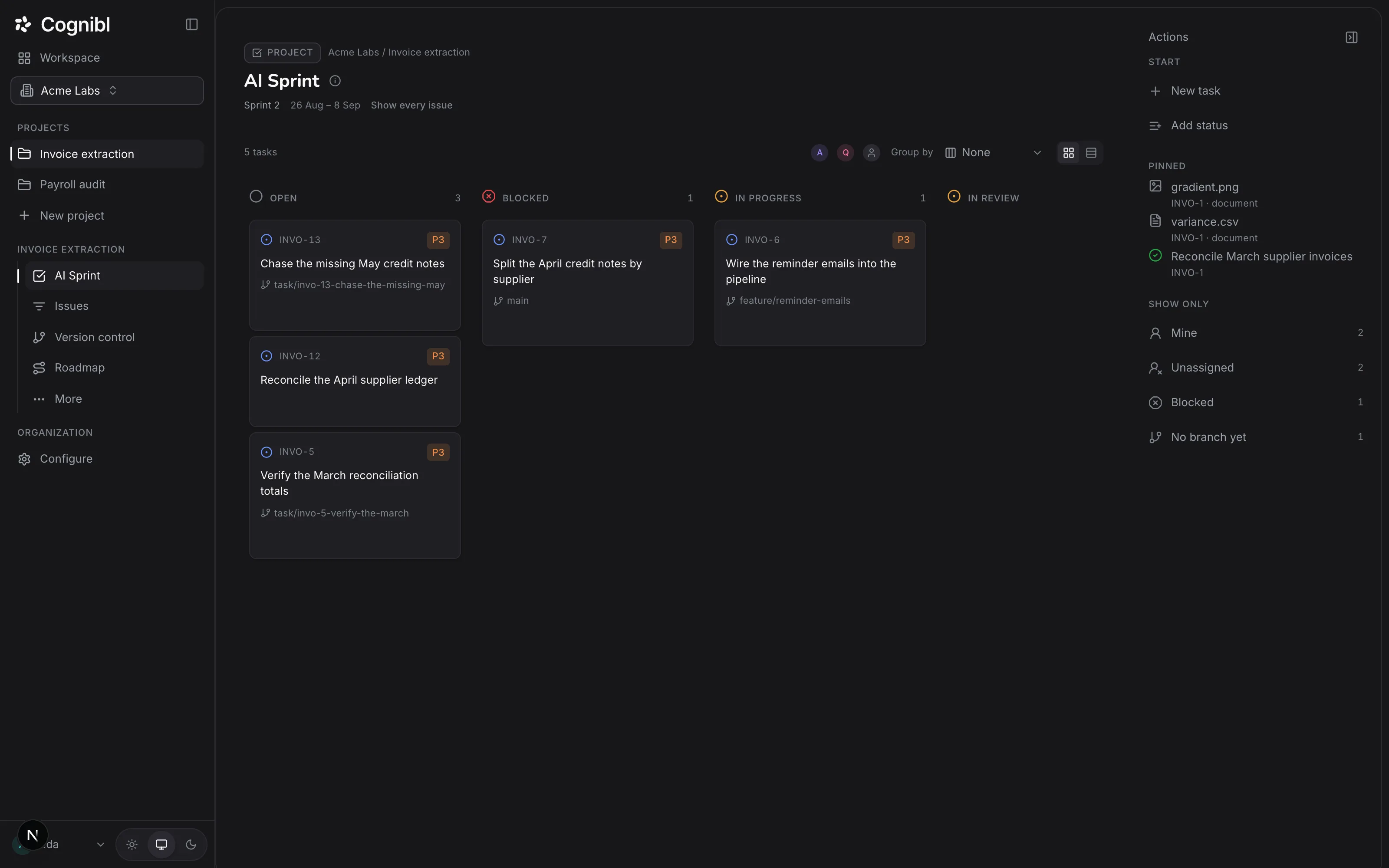
A phase is the two week block of work in Cognibl, like a sprint. Create one, fill it from the backlog, start it and follow people and agents on one board.
7 steps8 min
Part 3 of 5
Work with AI agents
Put an agent on a task, schedule work that repeats, connect an agent of your own and decide what any of them can reach.
- Guide 08
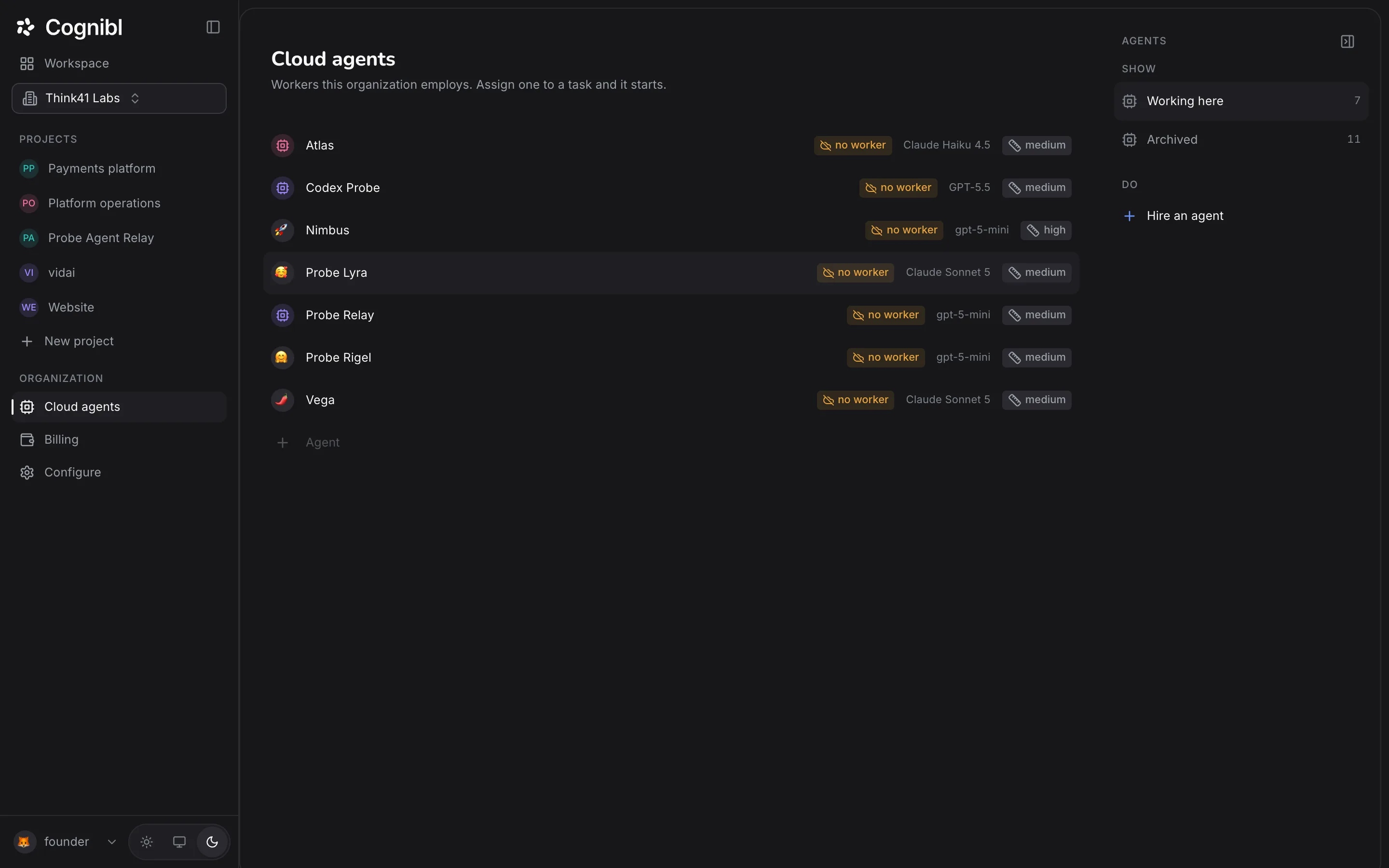
How to hire a cloud agent and assign it a task
Hire a cloud agent in Cognibl, assign it a task and follow the run. It pushes a branch, opens a pull request and files a proof of work.
7 steps7 min - Guide 09
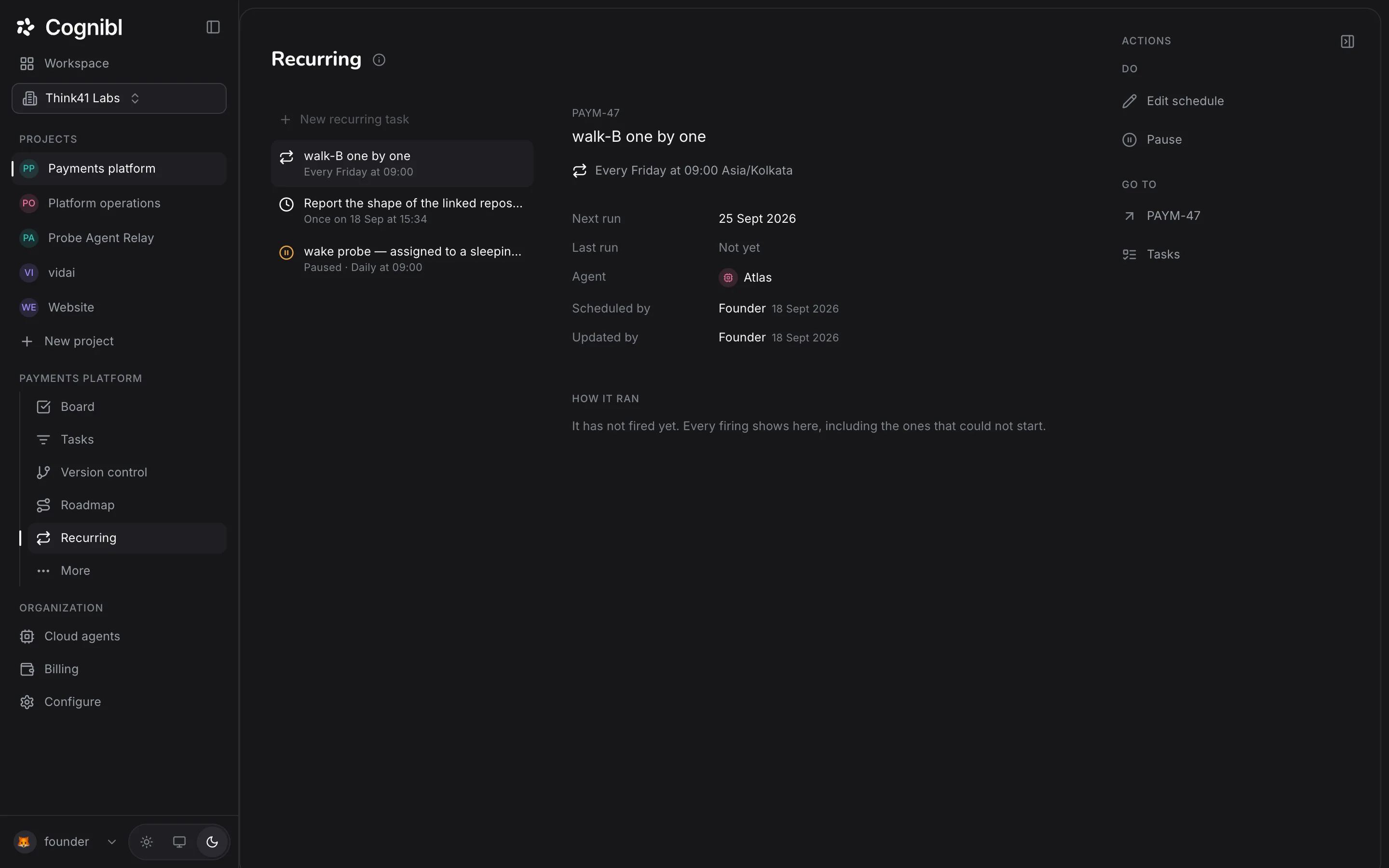
How to schedule a recurring task for an AI agent
Write a task and its done test, pick how often it runs and which cloud agent does it. Each run makes a fresh copy with its own proof of work.
7 steps5 min - Guide 10
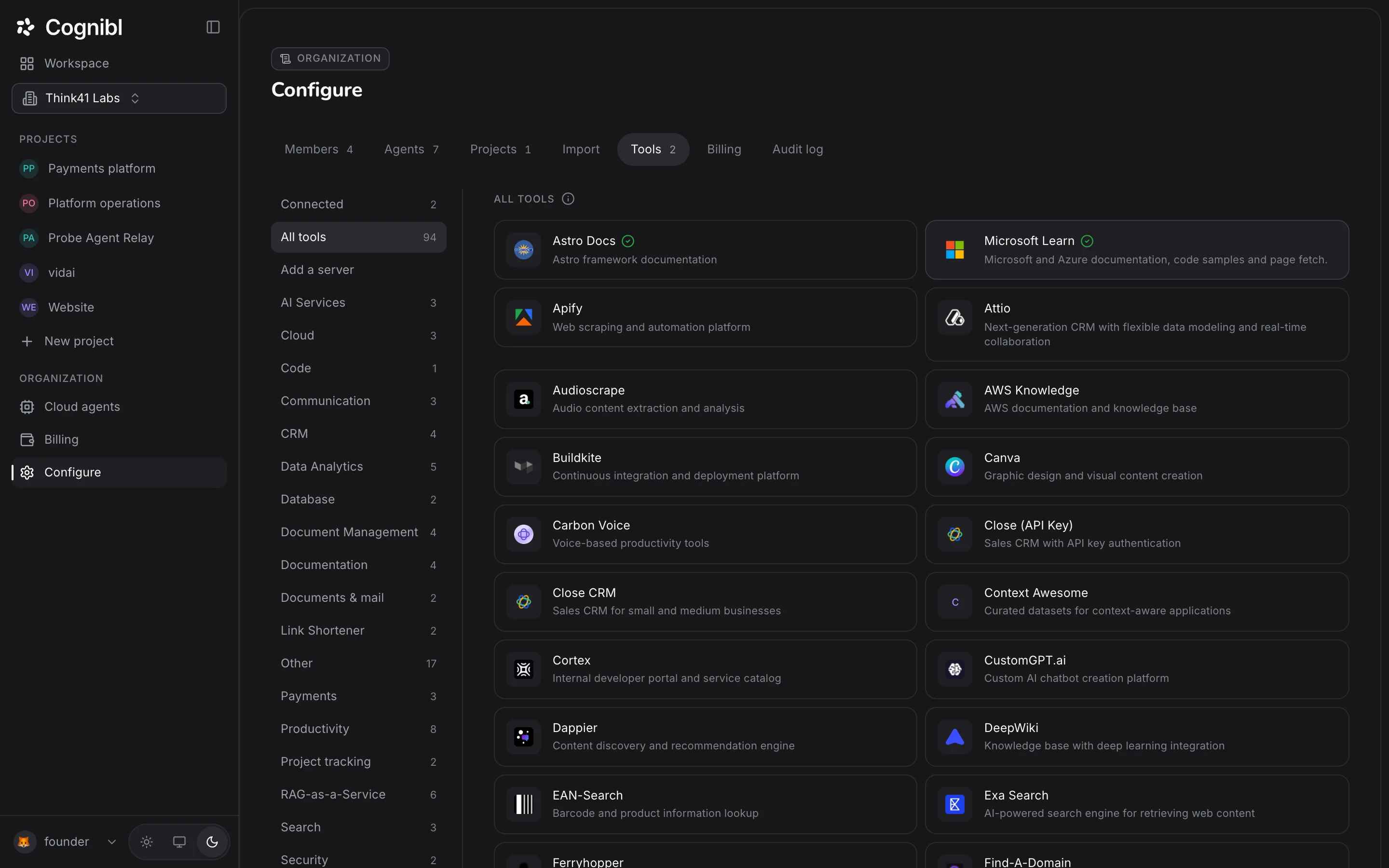
How to connect tools for your agents
Connect a tool once for the organization, then switch it on per project. Agents reach it through the Cognibl gateway and never hold the credential.
7 steps6 min - Guide 11
How to connect Claude Code or Cursor to Cognibl over MCP
Create an agent key, paste the ready mcpServers block into Claude Code, Claude Desktop or Cursor and switch on task access for the project.
7 steps6 min - Guide 12
How to set what AI agents can access in a project
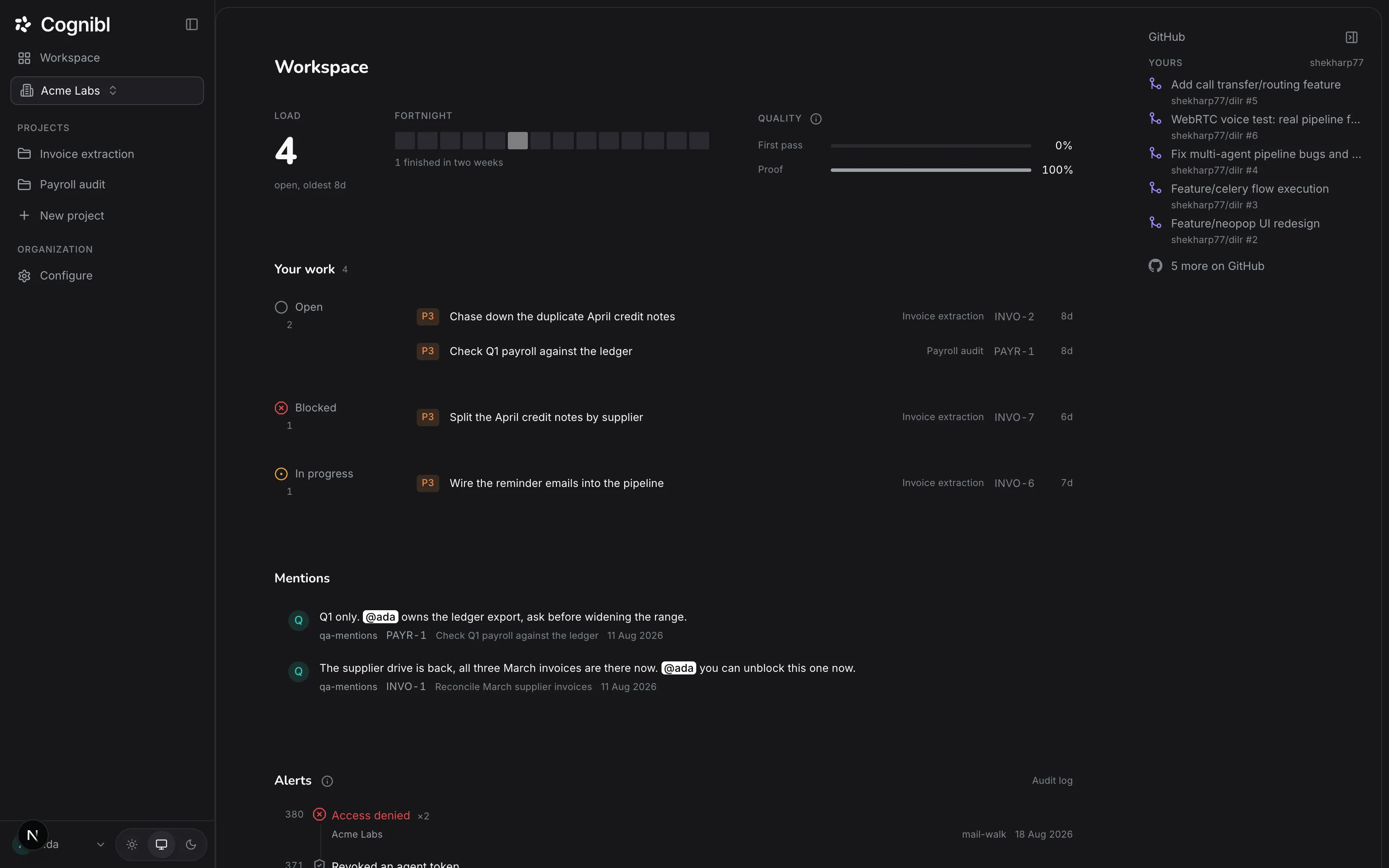
Seven switches on the Agent access tab of a project control what agents may do, from reading tasks to cloning code. All start off.
7 steps4 min
Part 4 of 5
Code and review
Link the repository, follow each task to its branch and pull request, and read what the reviewer found.
- Guide 13
How to link a GitHub repository to a project
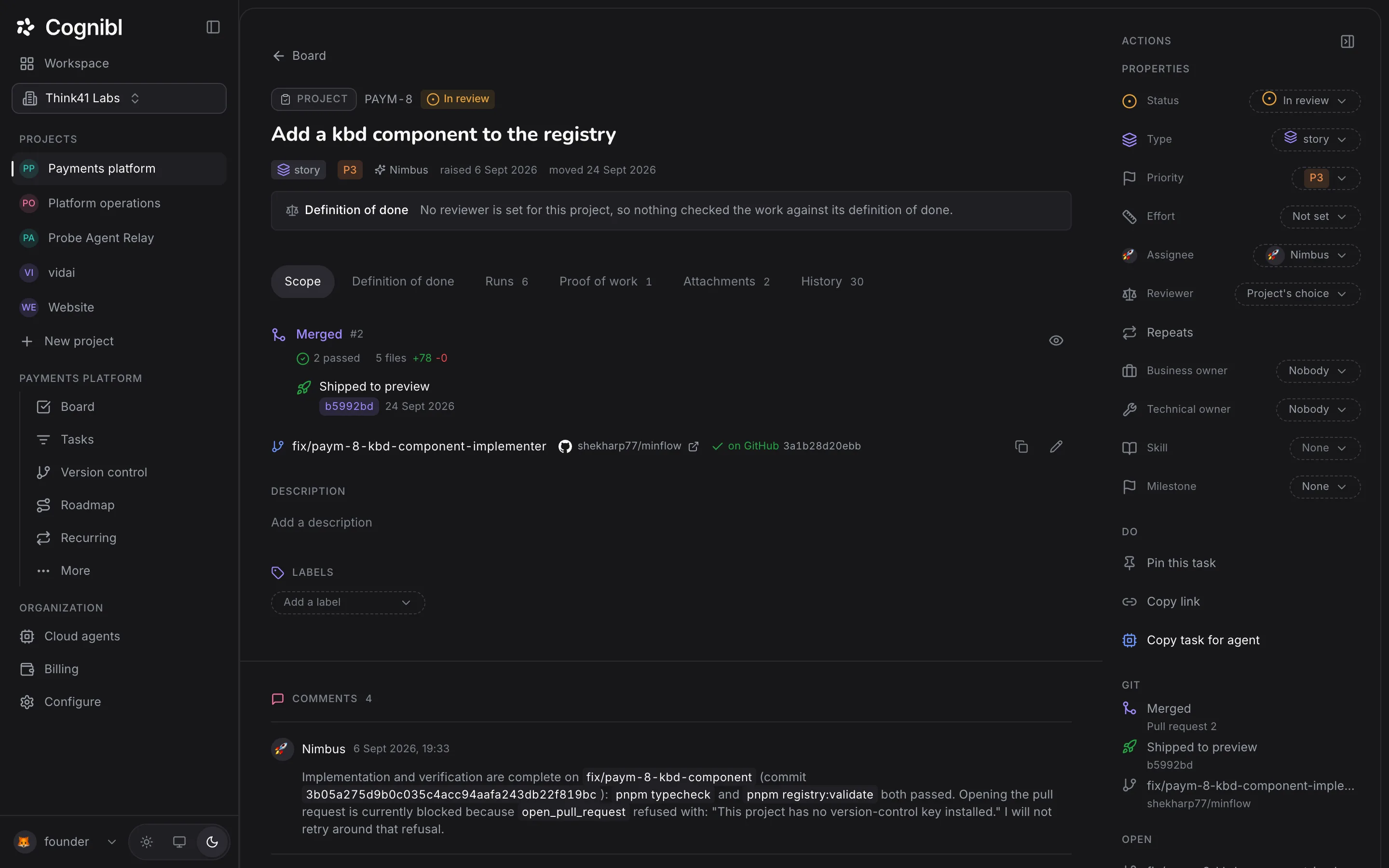
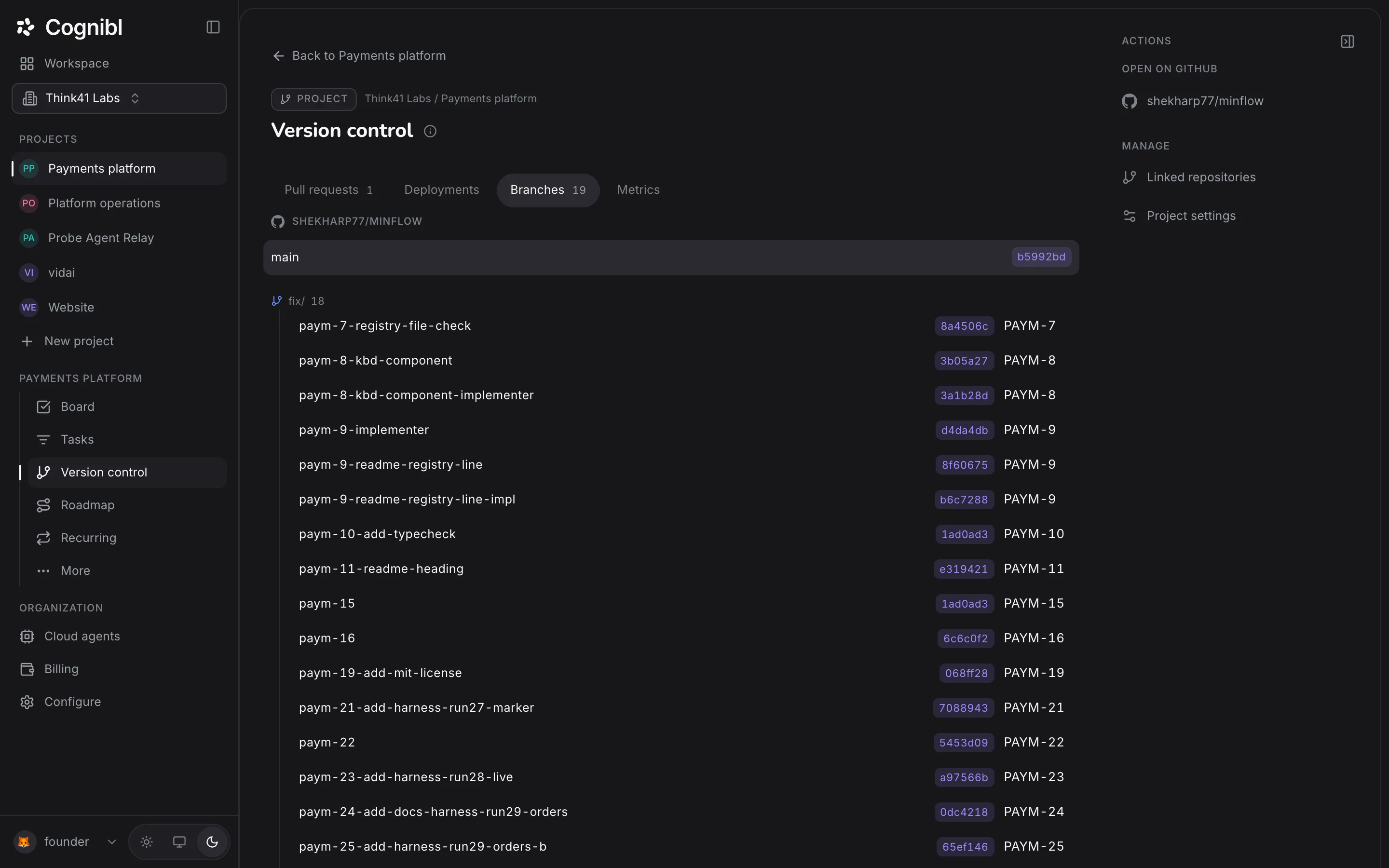
Add a fine-grained GitHub token as the project key and pick the repository. Cognibl then matches each branch and pull request to a task by its key.
6 steps7 min - Guide 14
How to follow a task from branch to merged pull request
Each Cognibl task shows its branch, pull request, checks and deployment. Set the branch, read the state of the pull request and see what a merge does.
7 steps5 min - Guide 15
How to review an AI agent's code and send it back
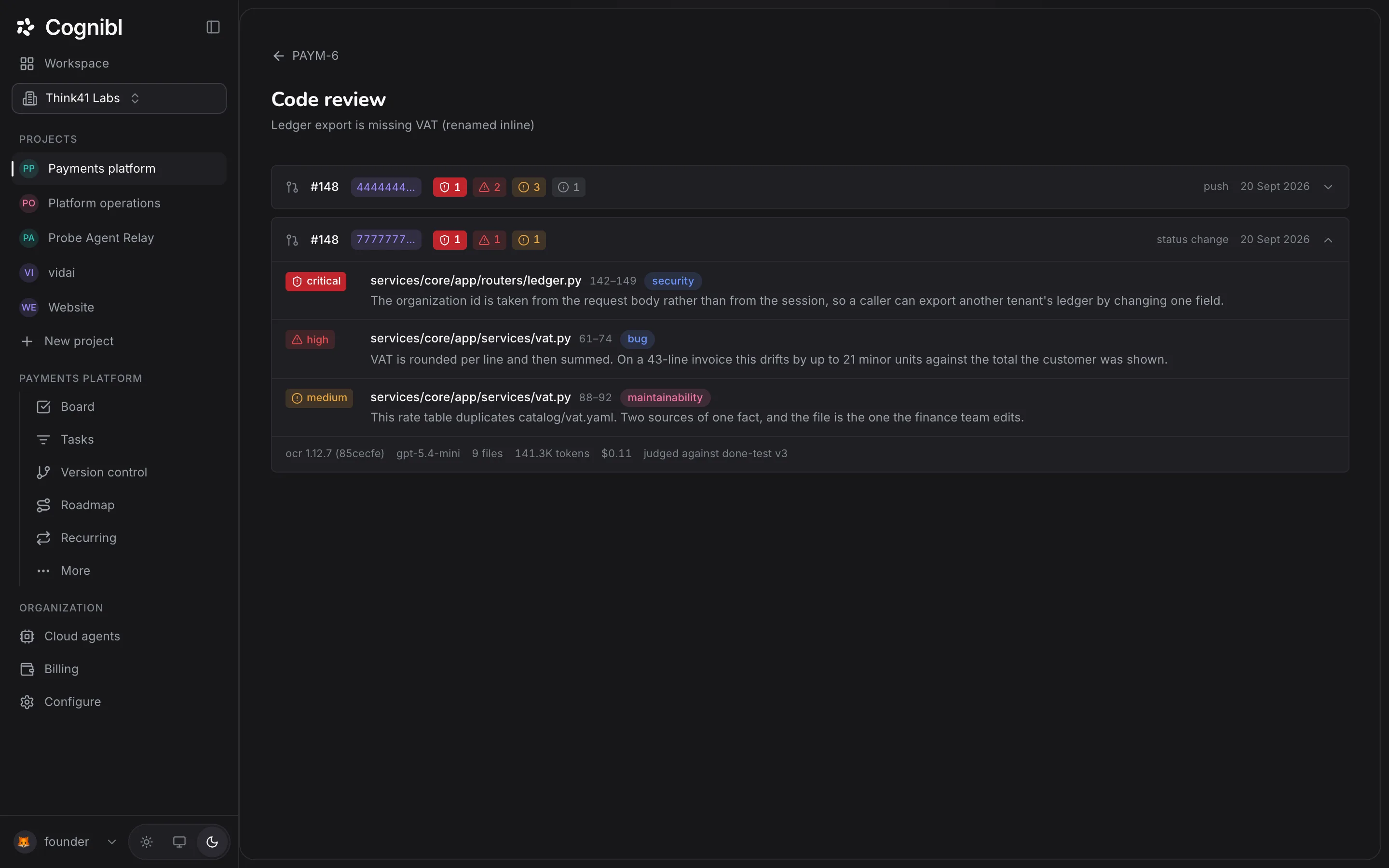
Switch on Code review and name a reviewer. Each pull request is reviewed on every push. Read findings by severity and send the task back with them.
7 steps6 min
Part 5 of 5
Plan and measure
Milestones on a calendar, the project numbers that count only verified work, and the record of every agent request.
- Guide 16
How to plan milestones on the roadmap
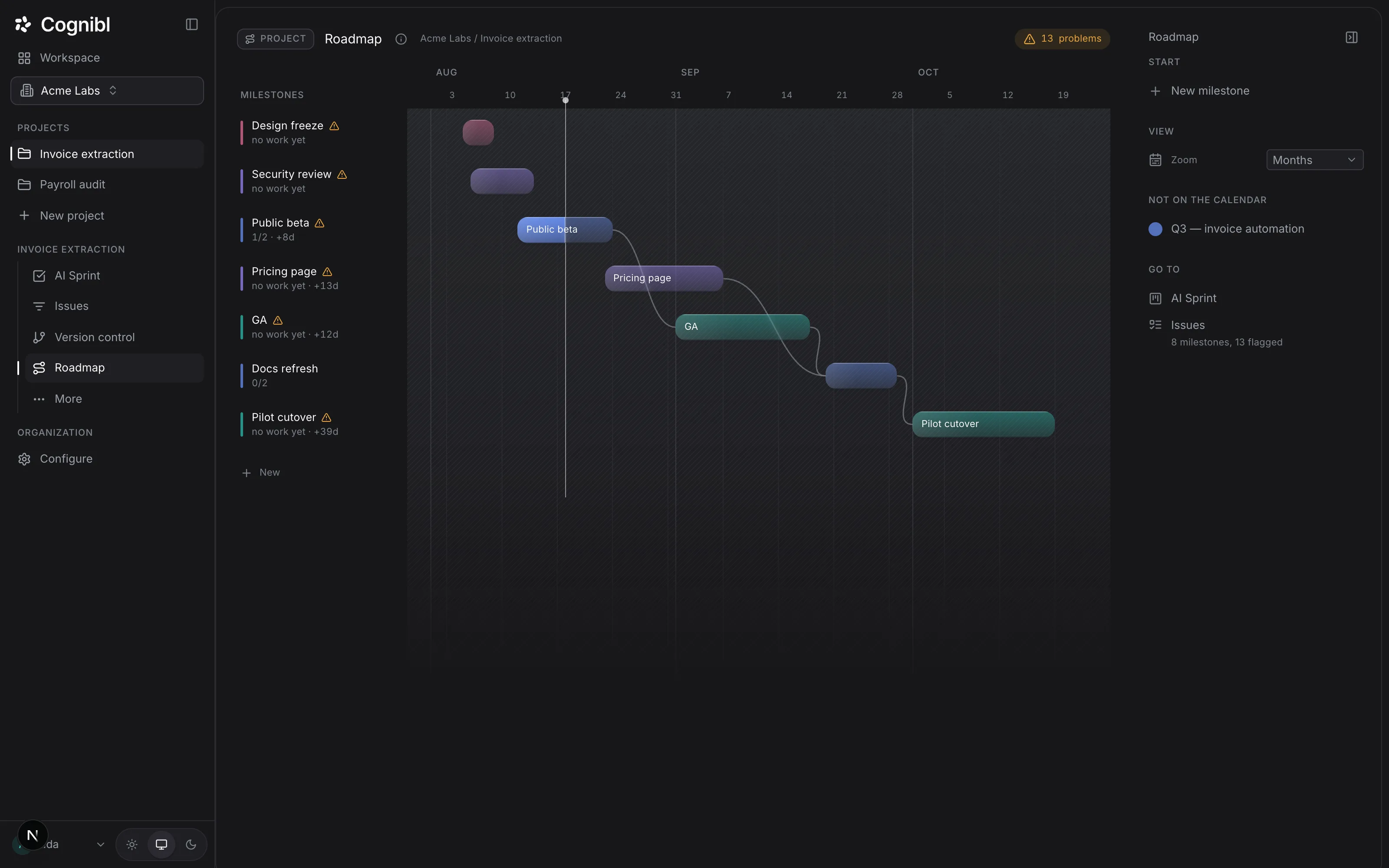
Create milestones with dates, drag between bars to set what waits for what, and read the count of problems in the plan, such as a milestone past its end.
6 steps6 min - Guide 17
How to read a project's metrics
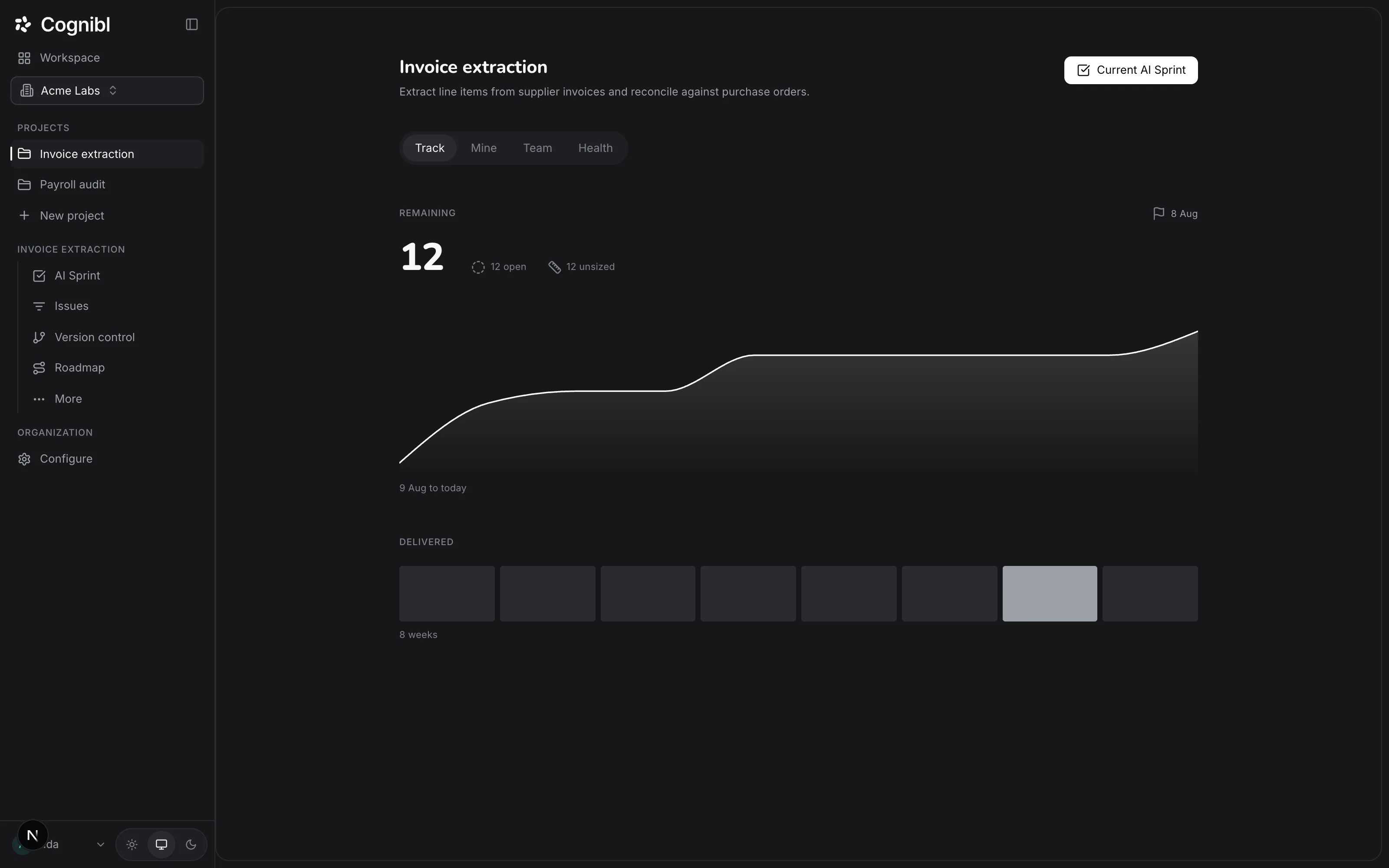
The Metrics screen shows work remaining, effort delivered each week, cycle time split into Spec, Build and Verify, and first pass, wait and reopen rates.
6 steps6 min - Guide 18
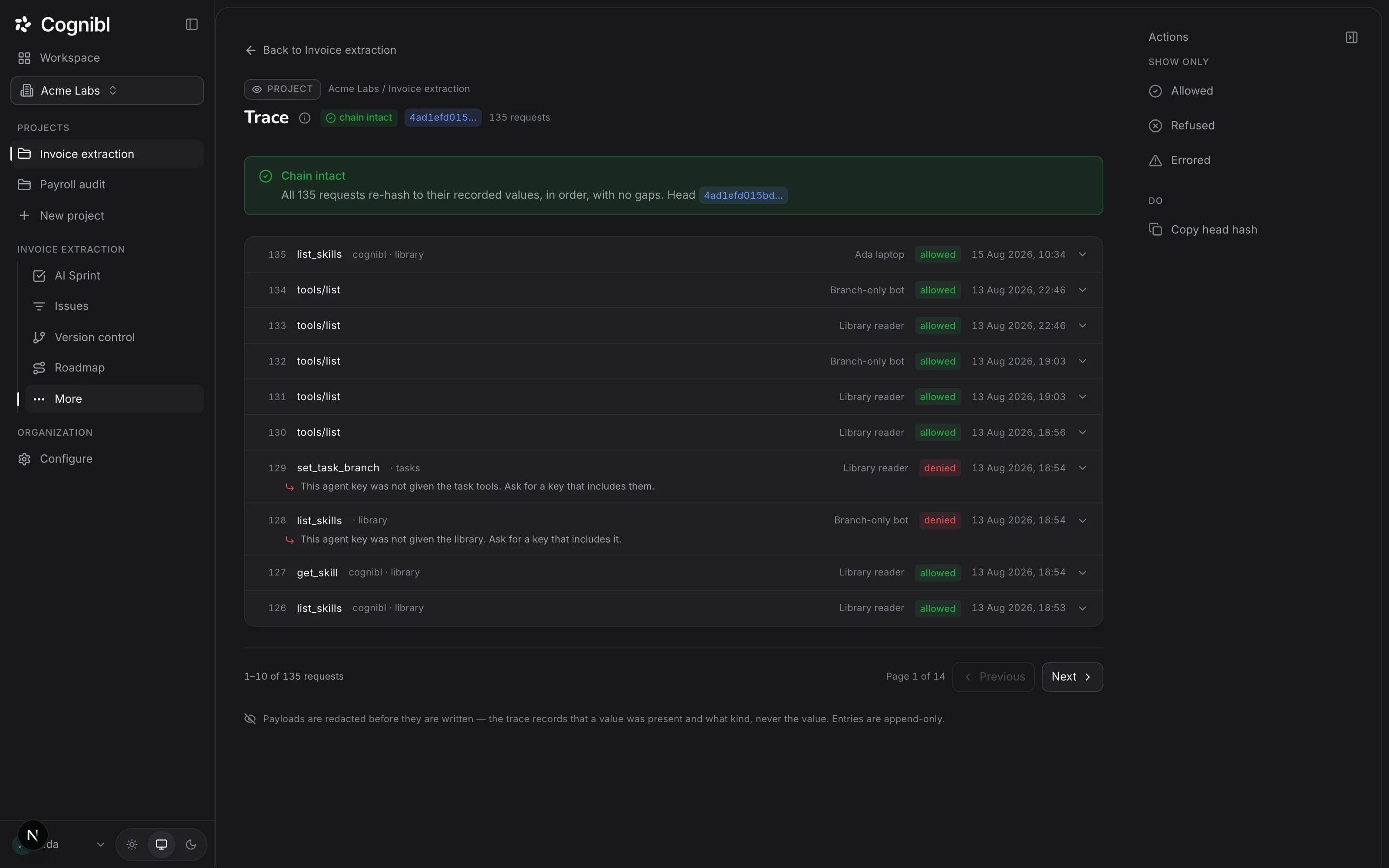
How to read the trace of every agent request
The trace lists every request an agent made through Cognibl: the tool, the key and whether it was allowed or denied. Read it and check the hash chain.
5 steps5 min
How these are written
Each guide matches what the product does today
The labels in bold are the labels on your screen. Where a feature is limited or not open yet, the guide says so. Following all 18 takes about 106 minutes.